
A Claude scheduled task runs a job you describe once on a cadence: hourly, daily, weekdays, weekly or on demand. Open Scheduled in the Claude sidebar, choose Create with Claude, and name the source, filters and output. Tasks run in Anthropic's cloud, so they use connectors and cloud files, not local folders. Available on Pro, Max, Team and Enterprise.
The AI in Real Estate Field Guide puts four applied CRE workflows, an eight-question readiness scorecard and a 30-day pilot plan in one 18-page PDF.
Why put market research on a schedule?
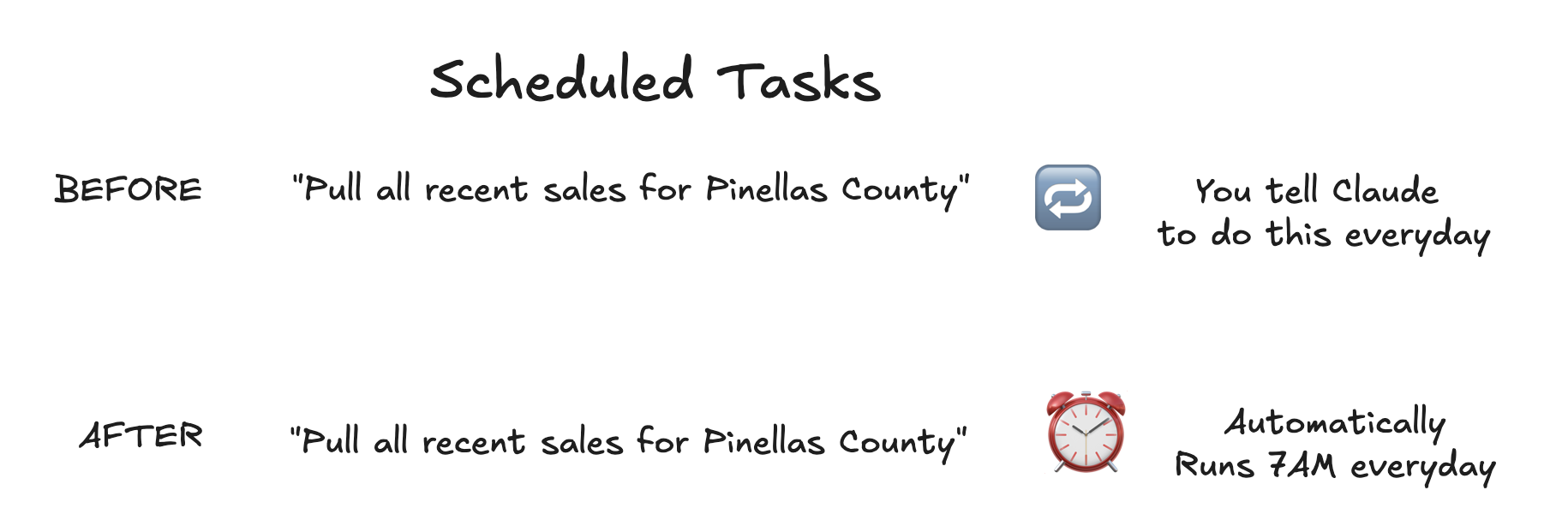
Because the same questions come back every week: what sold, who bought it, which loans are coming due. Claude cannot log into CoStar (here is why), so recurring research runs on sources you are allowed to automate. Most teams do this by typing "pull recent sales from the county site" into a chat every week. A scheduled task writes the request down once and runs it.
How do you create a scheduled task in Claude?
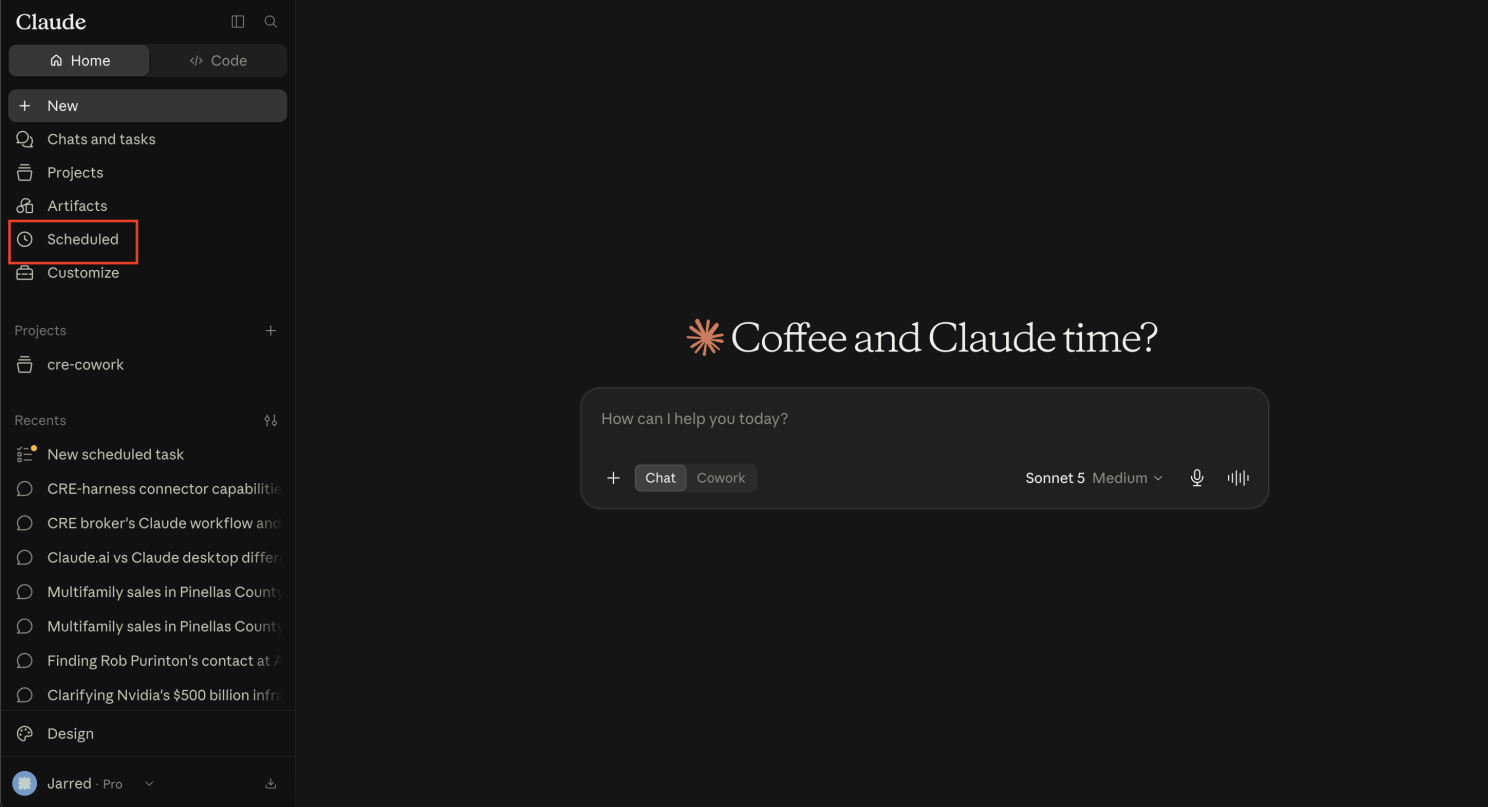
- Open Scheduled in the left sidebar. It is fully available in Claude Desktop, and in beta on the web and mobile apps.
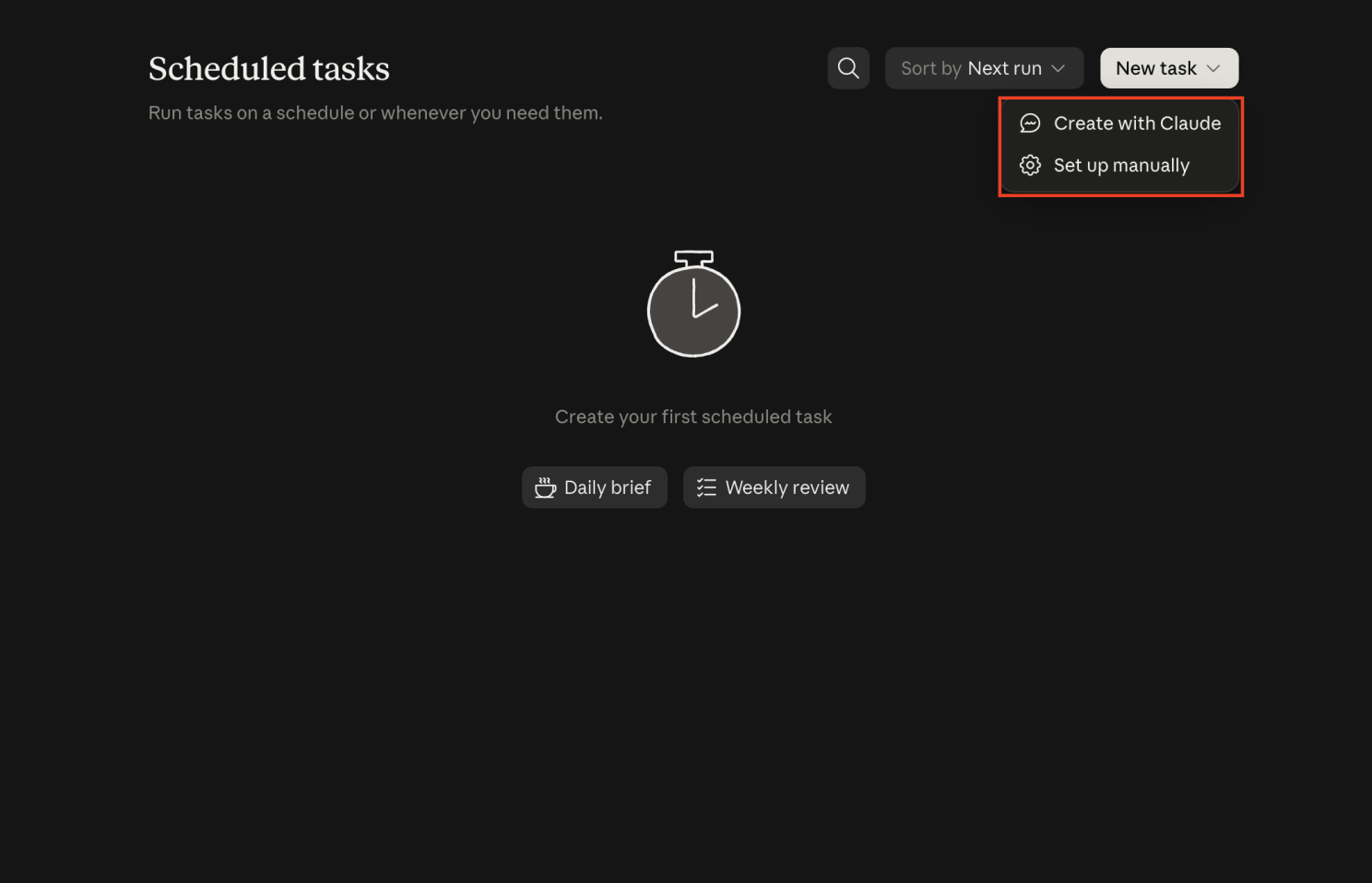
- Choose Create with Claude, or Set up manually. In the merged Claude rolling out since September 16, 2026, you can also describe the job in any conversation and Claude offers to schedule it.
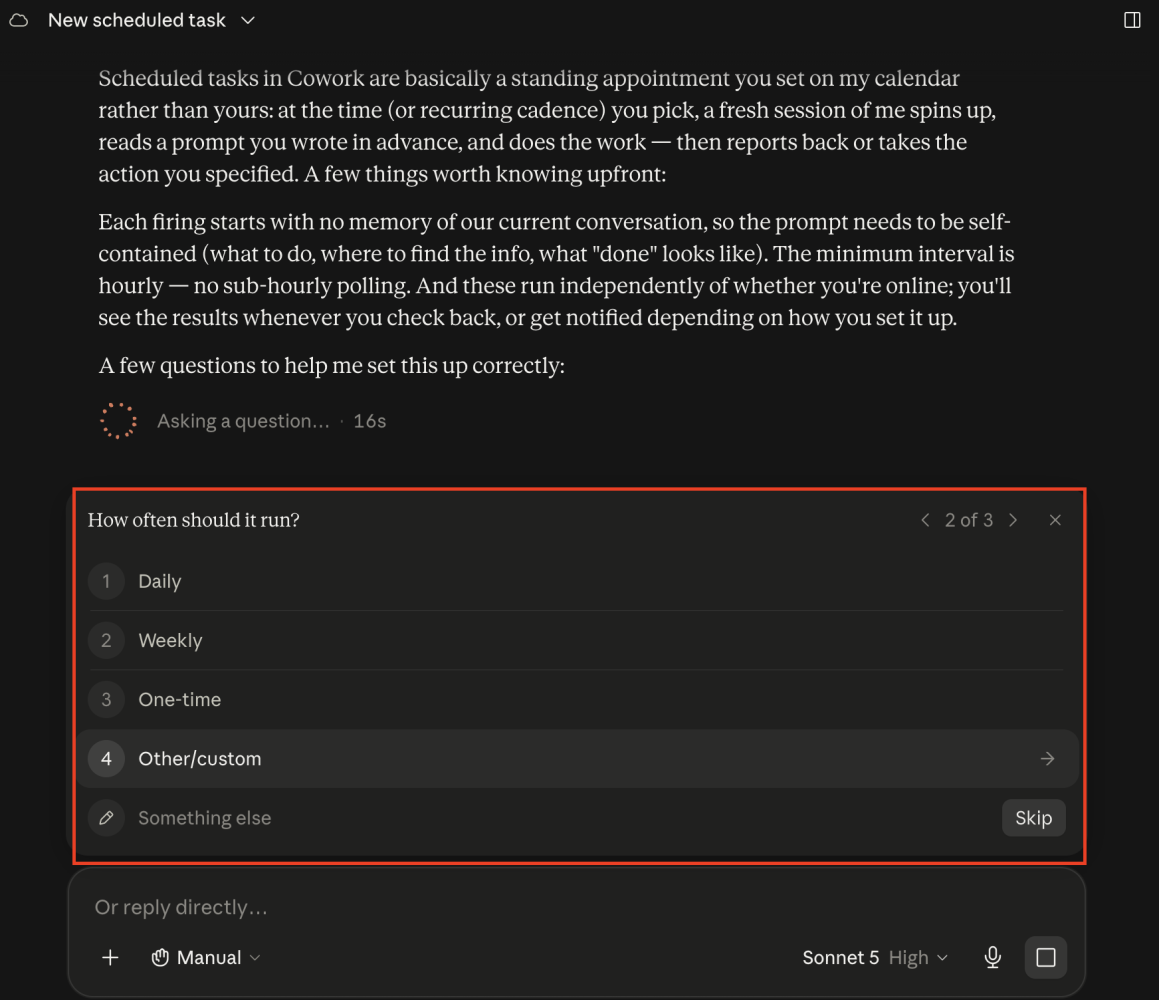
- Answer Claude's questions about cadence, source, output and limits.
- Name the connector and the tool the task should use.
- Run it once on demand and read the output before letting it run on its own.
Tasks use the same connected tools, Skills and plugins as any Cowork task, but run in the cloud and cannot read a folder on your computer. Put inputs behind a connector or in cloud-saved files. Source: Anthropic help, September 2026.
Example: a weekly recent-sales digest
I used the county records connector we built for CRE teams, which reads property appraiser and deed records in four counties around Tampa. Claude asked for a source, and I named the cre-harness connector and its recent sales tool.
The first run found 18 properties recorded as sold between August 6 and August 13, 2026. A prompt that holds up week to week:
Every Monday at 7am, use the county records connector's
recent sales tool to list commercial sales recorded in the last
7 days in [county], for [property types], above $[minimum].

For each sale: address, price, buyer, seller, recording date,
and price per square foot only where one deed conveyed one parcel.
List $100 deeds and multi-parcel deals separately. Do not treat
them as prices.

End with the date of the source file.
In Florida a nominal $100 deed usually marks a transfer that is not a sale. Everywhere, one price can cover several parcels, and dividing it by one building's square footage means nothing. More in what Florida property appraiser data tells you.
Why does last week always look slow?
Recording lag. A deed is recorded after closing, and a county's bulk file is only as fresh as its publish date. In the Florida files we load, the latest 30 to 45 days always read low. That is not the market slowing down. Put the source file date on every digest, judge trends on periods at least 45 days old, and use the latest week only to spot new names.
What else is worth scheduling?
- A capital-markets summary each Monday from sources you license for AI use.
- A pipeline digest from your CRM: deals with no activity in 14 days and the follow-ups due this week.
- A loan-maturity watchlist for owners you track, from sources that carry maturity dates.
Give each task one named reader.
Common questions
Do Claude scheduled tasks run when my computer is off?
Yes, as of September 2026. Scheduled tasks run in Anthropic's cloud, so they keep their cadence when your computer is asleep or the Claude app is closed. The trade-off is that a cloud task cannot read a local folder. It works through connectors and cloud-saved files.
Which Claude plans include scheduled tasks?
Pro, Max, Team and Enterprise. Scheduled tasks are fully available in the desktop app and in beta on the web and mobile apps for Pro, Max and Team. Enterprise workspaces get the web and mobile versions when an admin turns them on.
Continue with the commercial real estate AI workflow hub, or read the original version in the altr'd newsletter on LinkedIn.