
Claude Cowork lets Claude work in a folder on your computer, so an underwriting model is built and revised in the same Excel file instead of uploaded and downloaded each round. It needs a paid plan and the Claude Desktop app for macOS or Windows, open and connected. Since September 16, 2026, Cowork has been merging into everyday Claude.
The AI in Real Estate Field Guide puts four applied CRE workflows, an eight-question readiness scorecard and a 30-day pilot plan in one 18-page PDF.
Why does underwriting in a chat window take so many steps?
Because the file leaves your computer every round, and every download is a new copy nobody is sure is current.
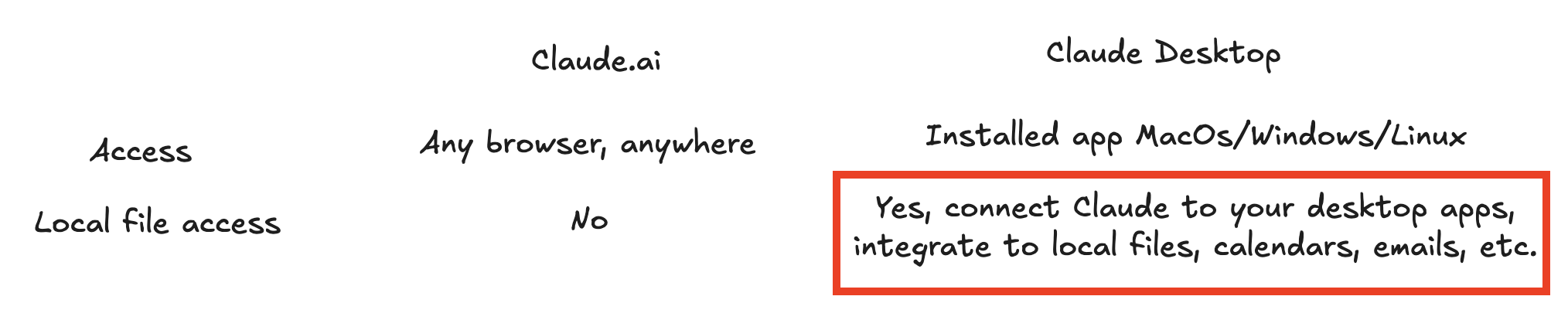
With Cowork in the desktop app, Claude reads and writes files in a folder you grant it, and the next revision edits the same file. Outside CRE, see what Claude Cowork is.
What changed in September 2026?
Cowork left research preview and became generally available on all paid plans on macOS and Windows on April 9, 2026. On September 16, 2026, Anthropic announced that Cowork and chat are becoming one Claude: you ask for what you need and Claude decides whether it is a quick answer or a task. That is rolling out to Pro and Max first, with Team and Free plans to follow; Enterprise admins get at least 30 days' notice.
- If your app shows separate Chat and Cowork options, choose Cowork. If not, you have the merged version; just ask.
- Tasks now run on Anthropic's servers, in beta, but reaching files on your computer still needs the Claude Desktop app open and connected (Anthropic help).
- Existing projects, connectors and Skills carry over. The pattern here is unchanged: one connected folder per deal, one authoritative file.
How do you set up Cowork for one deal?
- Install Claude Desktop on macOS or Windows and sign in on a paid plan.
- Make one folder per deal with four subfolders:
sourcefor the OM and rent roll,templatefor your approved model,workingandfinal. - Start a Cowork task and connect that folder only. Claude can read and write only in folders you have connected, so connect the deal folder, not Documents or the shared drive.
- Pick an approval mode. Manual asks before each action, Auto lets Claude review actions for safety, and Skip all approvals asks for nothing. Start with Manual on your first real deal. Claude always asks before permanently deleting a file.
- Ask for the model, open it in Excel, and ask for revisions to the same file.
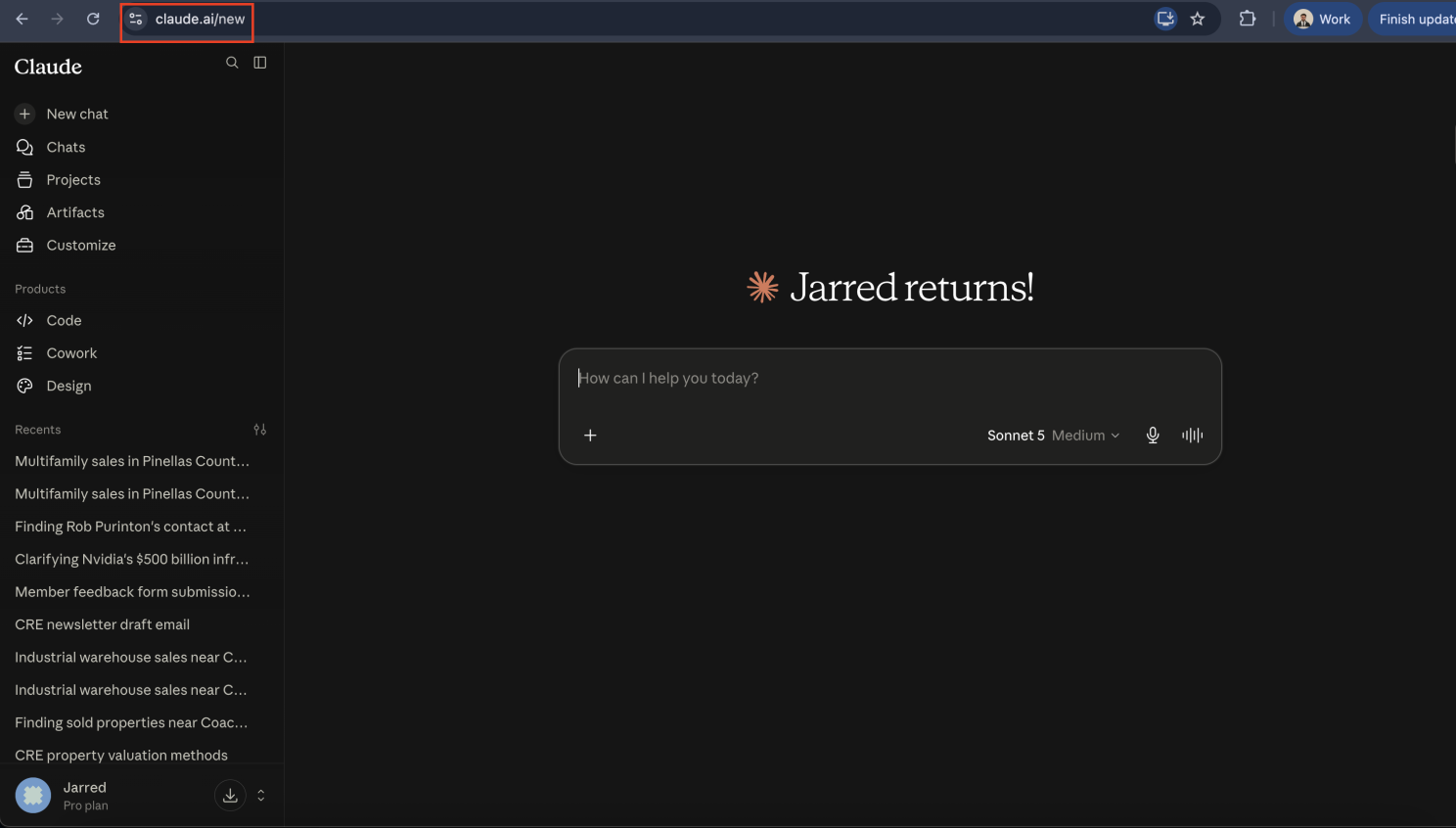
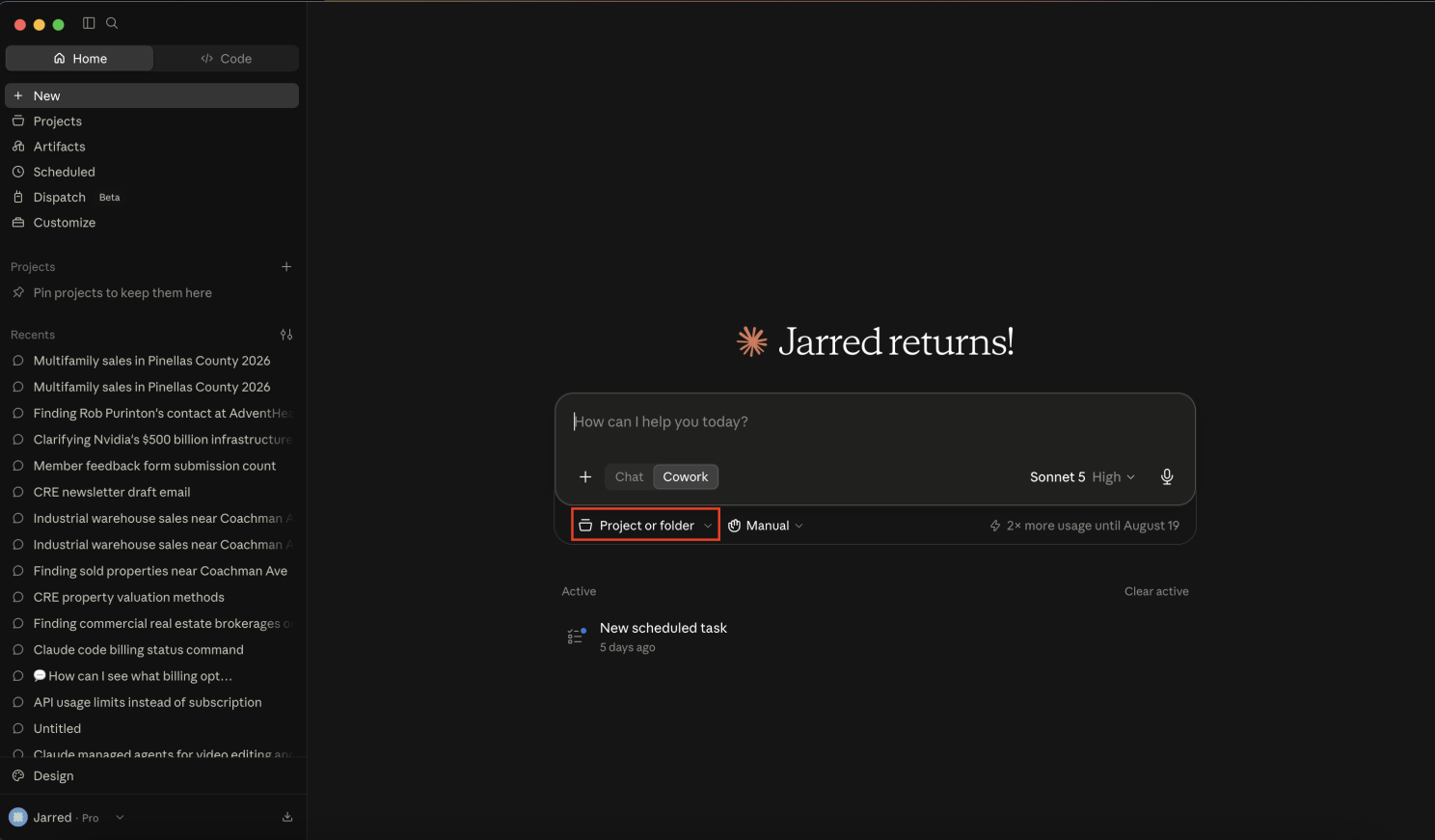
Example: an office-condo model built in place
We created a project called cre-cowork with the OM and a template.
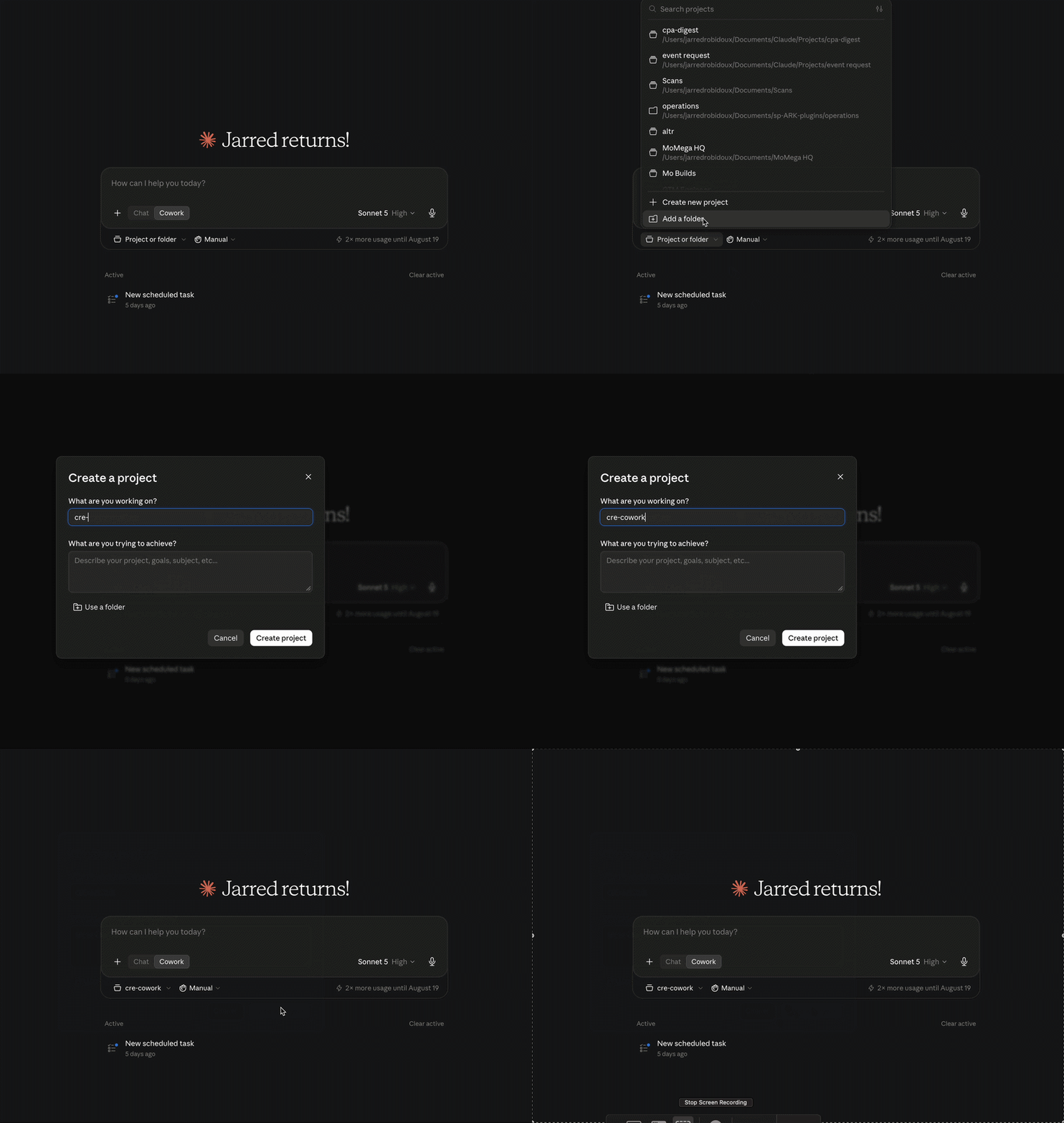
Then the underwriting request, run against the project files:
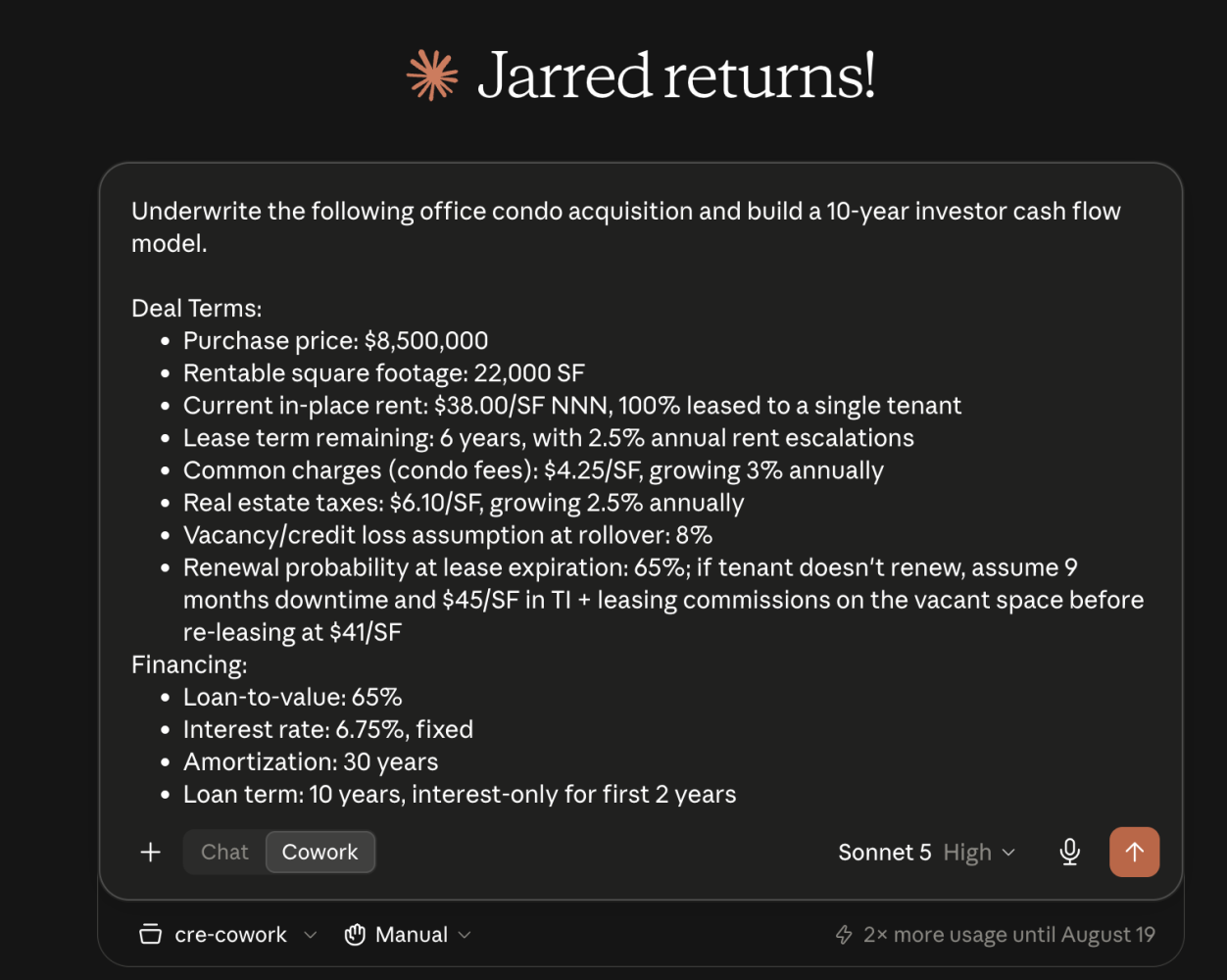
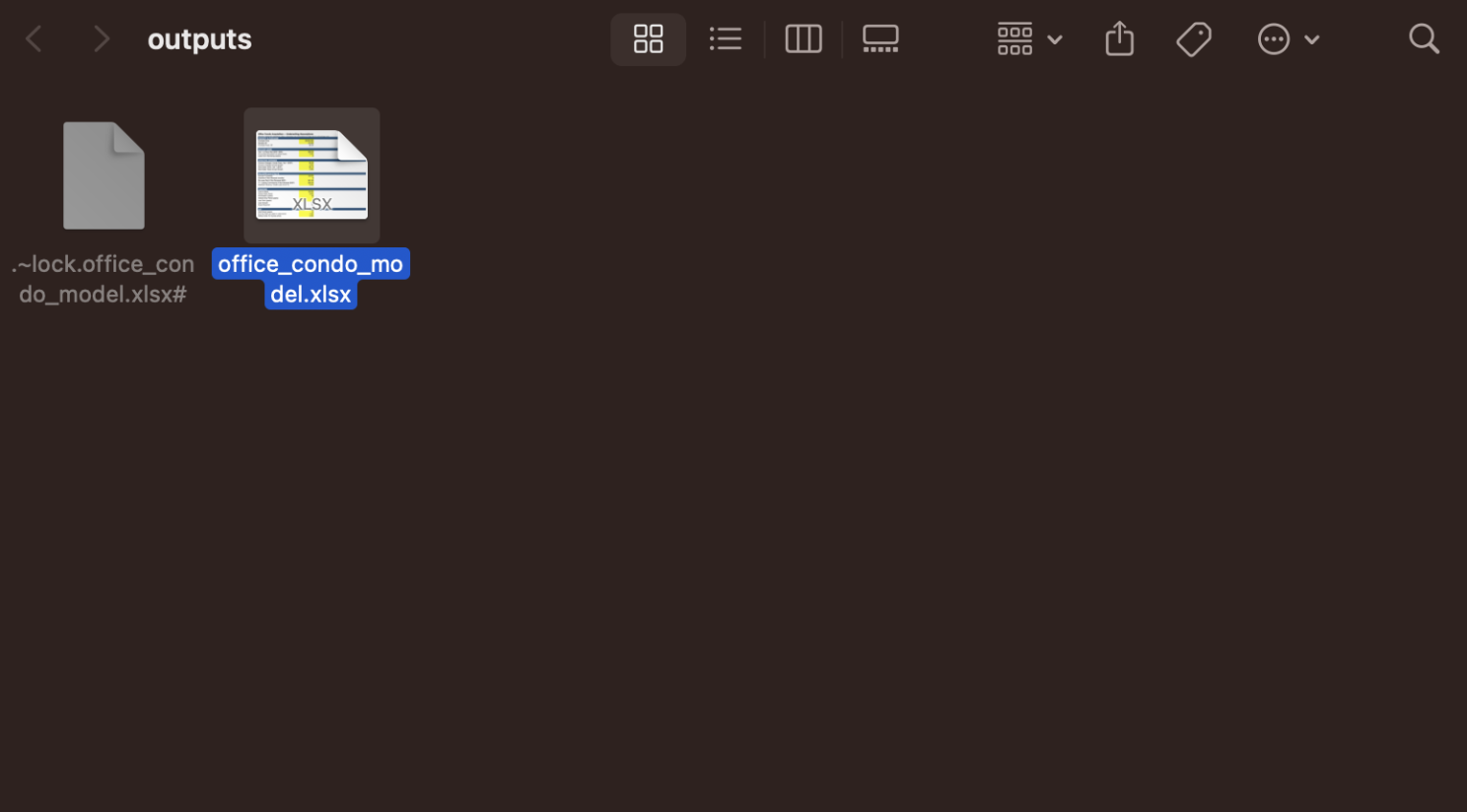
The model saved to the project's outputs folder, ready for the next round of edits.
A request that holds up on real deals:
Using the OM in /source and our template in /template,
build the ten-year cash flow in /working/[deal]-uw.xlsx.

Keep our tab order. Keep formulas live, not pasted values.
List every assumption the OM does not state on an "Open questions" tab,
and stop for my answers before you calculate returns.
Do not edit anything in /source or /template.
Pair it with the underwriting Skill and you stop typing the method.
What should you check before trusting the file?
- Every input traces to a page of the OM or to an assumption someone confirmed.
- Formulas are live. A hard-coded number where a formula belongs is the most common silent error.
- The open-questions tab is empty, or every item on it has an owner.
- The file name says which version it is, and one person decides when it moves to
final.
Two ways this goes wrong: granting a whole drive, and switching off approvals on a folder other people use.
How does Cowork fit with Skills, connectors and scheduled tasks?
Skills hold the method, connectors reach your CRM and Yardi, Cowork does the file work, and scheduled tasks run it on a cadence.
Common questions
Which Claude plans include Cowork?
As of September 2026, Cowork is on paid plans: Pro, Max, Team and Enterprise. It became generally available in the Claude Desktop app on macOS and Windows on April 9, 2026. Working on local files needs the desktop app open and connected.
Is Claude Cowork going away?
No, it is being folded in. On September 16, 2026 Anthropic began merging Cowork and chat into one Claude, starting with Pro and Max plans. Claude decides whether a request is a quick answer or a task, and existing projects, connectors and Skills carry over.
Can Cowork edit Excel underwriting models directly?
Yes. Cowork can create and edit files, including Excel workbooks with live formulas, inside a folder you grant it. Tell it not to touch your template, and have an analyst check formulas and assumptions before the file is treated as final.
Continue with the commercial real estate AI workflow hub, or read the original version in the altr'd newsletter on LinkedIn.